Integracije
Prvi koraki s Shopify
Povežite svojo trgovino Shopify, da lahko AI in agenti HelpStack odgovarjajo na vprašanja o naročilih, sledenju pošiljk in izdelkih ter po želji prikažejo klepetalni gradnik v živo v vaši trgovini.
Kaj dobite#
| Poizvedbe o naročilih | AI odgovori na "Kje je moje naročilo?" in "Kakšna je sledilna številka?" z živimi podatki iz Shopifyja, ko kupec dokaže, da je naročilo njegovo |
| Vprašanja o izdelkih | Kupci sprašujejo o izdelkih; AI podrobnosti pridobi neposredno iz vaše trgovine |
| Zgodovina strank | Agenti v stranski vrstici pogovora vidijo skupne zneske naročil, status pošiljanja in zgodovino porabe |
| Gradnik v trgovini | Neobvezen klepetalni mehurček v vaši trgovini, da lahko stranke sprašujejo, ne da bi zapustile stran |
Tehnično znanje ni potrebno. Spodnji koraki trajajo približno 10–15 minut in ne zahtevajo nič drugega kot klikanje po nekaj straneh z nastavitvami.
Ste se pravkar registrirali? Če ste pri uvajanju navedli, da prodajate na Shopifyju, korak namestitve trgovino poveže namesto vas in se konča z enim klikom v urejevalniku teme, zato lahko spodnja koraka 1 in 3 preskočite.
Obračun. Povezana trgovina Shopify plačuje HelpStack prek Shopifyja, na strani s cenami aplikacije v vaši skrbniški plošči Shopify, zato nikoli ne plačate dvakrat. Trgovine, ki še niso povezane, naprosimo, da se povežejo, preden izberejo paket.
Korak 1 — Povežite svojo trgovino#
- V nadzorni plošči HelpStack pojdite na Nastavitve → Integracije.
- Poiščite kartico Shopify in kliknite Poveži Shopify.
- Vnesite domeno
.myshopify.comsvoje trgovine, na primeryour-store.myshopify.com, in kliknite Poveži. - Preusmerjeni boste na Shopify. Kliknite Install (ali Approve), da HelpStacku omogočite dostop samo za branje do svojih naročil, strank in izdelkov.
- Vrnili se boste v HelpStack z zelenim stanjem Povezano.
To je to. Odslej agenti pri vsakem pogovoru vidijo ploščo Naročila v stranski vrstici, AI pa lahko odgovarja na vprašanja o naročilih in izdelkih.
Korak 2 — Dovolite dostop do podatkov o naročilih in strankah (enkratno)#
Shopify zahteva ločeno odobritev, preden lahko katera koli aplikacija bere podatke o naročilih in strankah. Dokler to ni opravljeno, AI na vprašanja o naročilih odgovori z "dostop omejen"; vprašanja o izdelkih delujejo tudi brez tega.
- Odprite Shopify Partner Dashboard na naslovu dev.shopify.com in se prijavite.
- V levem stranskem meniju kliknite Apps in izberite aplikacijo HelpStack.
- Pojdite na API access (ali App setup → API access).
- Poiščite Protected customer data access in kliknite, da ga odprete.
- Omogočite predmet Order in označite Name, Email in Phone.
- Kot razlog napišite:
customer service — agents look up order status for shoppers. - Kliknite Save in počakajte na odobritev Shopifyja (za nove aplikacije v razvoju je to običajno takojšnje).
To storite samo enkrat. Dovoljenje velja na ravni aplikacije in ostane veljavno tudi po posodobitvah.
E-pošta tukaj ni neobvezna. HelpStack primerja e-poštni naslov na naročilu s tistim, ki ga navede kupec, preden karkoli prebere nazaj (glejte "Kako poizvedbe o naročilih varujejo vaše stranke" spodaj). Če v koraku 5 ne obkljukate polja Email, AI ne more potrditi, da naročilo pripada osebi, ki sprašuje, zato bo sporočil, da ustreznega naročila ni našel.
Kako poizvedbe o naročilih varujejo vaše stranke#
Klepetalni mehurček v vaši trgovini lahko odpre kdor koli, številke naročil pa običajno tečejo zaporedno — 1001, 1002, 1003 — zato številka naročila sama po sebi ni dokaz ničesar. HelpStack jo zato obravnava kot polovico odgovora:
- Za poizvedbo o določenem naročilu AI potrebuje številko naročila in e-poštni naslov, s katerim je bilo naročilo oddano. Če je kupec navedel samo številko, pomočnik vpraša za e-pošto, preden karkoli poišče.
- Če se to dvoje ne ujema, kupec dobi odgovor, da ustreznega naročila ni bilo mogoče najti. Ne izve, da naročilo obstaja, e-pošta pa je napačna, saj bi že to potrdilo, da je tuje naročilo resnično.
- Zgodovina stranke (število naročil, skupna poraba) se prikaže samo za osebo v tem pogovoru. AI ni mogoče pregovoriti, da bi prikazal podatke koga drugega.
- "Poišči moja naročila po e-pošti" deluje popolnoma enako kot prej: kupec, ki navede svoj naslov, dobi nazaj svoja naročila.
Na vašo ekipo to ne vpliva. Plošča Naročila v stranski vrstici je namenjena prijavljenim agentom, ki gledajo vašo lastno trgovino, zato še naprej prikazuje vse kot prej.
Korak 3 — Prikažite klepetalni gradnik v svoji trgovini (neobvezno)#
S tem korakom dodate klepetalni mehurček v svojo trgovino Shopify, da lahko kupci sprašujejo, ne da bi zapustili stran. Preskočite ta korak, če želite, da AI odgovarja samo na vprašanja, ki prihajajo po drugih kanalih (e-pošta, Instagram in podobno).
3a — Omogočite gradnik v HelpStack
- Pojdite na Nastavitve → Integracije in odprite razdelek Gradnik v trgovini.
- Vklopite stikalo Omogoči gradnik v trgovini.
- Pod Privzeti kanal izberite kanal Klepet na spletni strani, ki ga želite uporabiti. (Če ga še nimate, ga najprej ustvarite pod Nastavitve → Kanali.)
- Po želji dodajte vrstice po jezikih: kupci, katerih brskalnik je nastavljen na ta jezik, bodo preusmerjeni na drug kanal. Za jezike, ki niso dodeljeni, se uporabi privzeti kanal.
- Kliknite Shrani.
3b — Dodajte gradnik v svojo temo
Izberite eno od spodnjih dveh metod:
Možnost A — App embed (priporočeno, brez kode)
Z metodo App embed lahko gradnik vklopite in izklopite v urejevalniku tem Shopify z enim samim klikom. Sprememb kode ni treba narediti. To deluje z vsemi temami Online Store 2.0.
-
V skrbniškem središču Shopify pojdite na Online Store → Themes.
-
Poleg svoje aktivne teme kliknite ikono svinčnika (Edit) ali Customize.
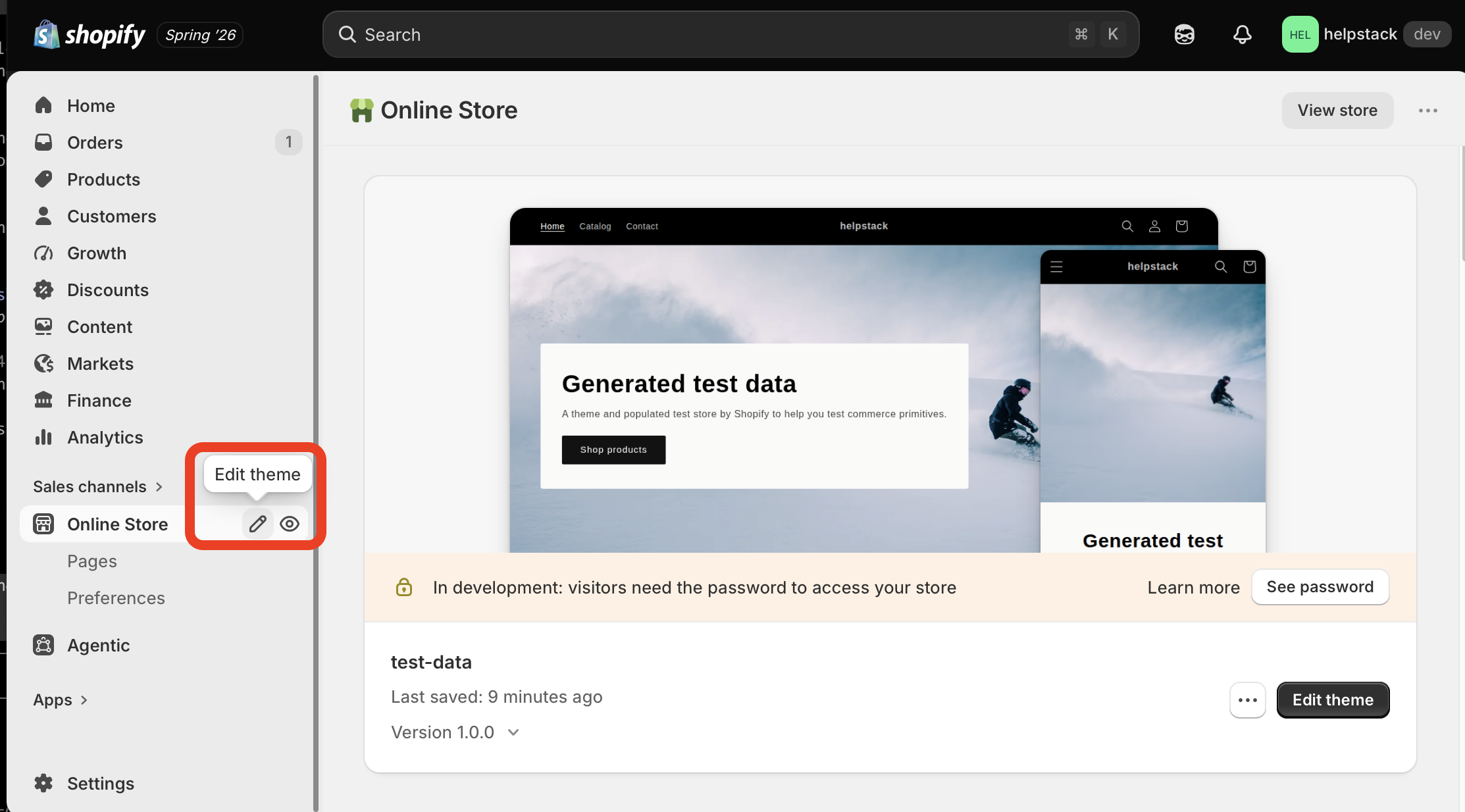
Skrbniško središče Shopify: Online Store → Edit theme -
V urejevalniku tem, ki se odpre, v levem stranskem meniju poiščite razdelek App embeds (ikona sestavljanke, bližje dnu).
-
V seznamu poiščite HelpStack Chat in ga vklopite (ON).
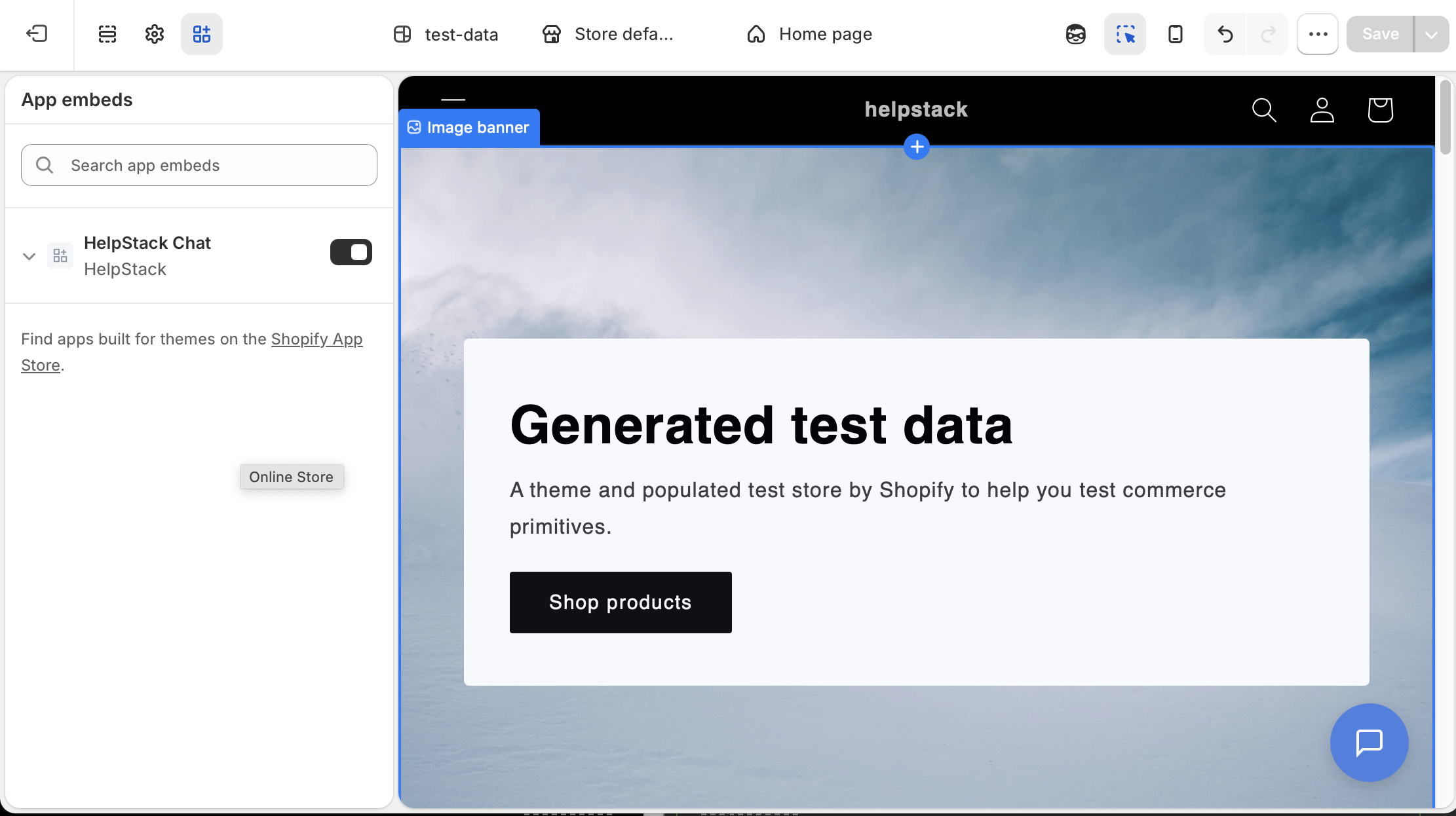
Vklop vdelave aplikacije HelpStack Chat v urejevalniku tem -
Kliknite Save v zgornjem desnem kotu urejevalnika tem.
Klepetalni mehurček se takoj prikaže v vaši trgovini.
Možnost B — Ročni odrezek
To uporabite, če vaša tema ne podpira App embeds (starejše teme Debut ali Brooklyn).
-
V HelpStack pojdite na Nastavitve → Integracije in kopirajte odrezek, prikazan v razdelku Gradnik v trgovini. Videti je takole:
<script src="https://helpstack.eu/api/shopify/storefront-widget.js?shop=your-store.myshopify.com" async></script> -
V skrbniškem središču Shopify pojdite na Online Store → Themes → Edit code.
-
Odprite
theme.liquid(v mapi Layout). -
Prilepite odrezek tik pred zaključno oznako
</body>. -
Kliknite Save.
Odpravljanje težav#
| Težava | Kaj preveriti |
|---|---|
| Klepetalni gradnik se ne prikaže v trgovini | Ste shranili v HelpStack (Korak 3a)? Je App embed v urejevalniku tem vklopljen (ON) in shranjen (Možnost A)? Ali je odrezek prilepljen pred </body> (Možnost B)? |
| AI na vprašanja o naročilih odgovori z "dostop omejen" | Dokončajte Korak 2: dovoljenje za Protected customer data manjka ali čaka na odobritev |
| AI pravi, da ne najde naročila, za katerega je kupec prepričan, da obstaja | Potrebuje e-poštni naslov, s katerim je bilo naročilo oddano, in ta se mora ujemati. Preverite naslov na naročilu v Shopifyju. Preverite tudi, da je v koraku 2 pod dovoljenjem Protected customer data obkljukano polje Email: brez njega HelpStack naročila ne more preveriti in bo sporočil, da ujemanja ni |
| Kupci v določenem jeziku vidijo napačen kanal | Dodajte vrstico za ta jezik pod Nastavitve → Integracije → Gradnik v trgovini |
| Gradnik se naloži, vendar prikaže napačen jezik | Preslikava jezika uporablja jezik brskalnika kupca. Dodajte vrstico za to jezikovno kodo v nastavitvah gradnika v trgovini |